Beta · iOS
The app has grown a lot, so here is the whole thing in four steps. Everything else on this page is detail hanging off one of them.
Get a race in. Record on your iPhone or Apple Watch, or import from a Garmin watch, a Vakaros Atlas, or a GPX file. Everything downstream works the same whichever way the data arrived.
It works out what happened. Where the marks were, which leg you were on, what the wind was doing and how it shifted, what each tack cost you. You do not tell it any of that — you tell it the course type, and it reads the rest off your track.
Ask about it. SmartCoach already has the race in front of it. Ask why you lost the second beat and it answers from your actual numbers, not from general sailing advice.
Compare and share. Put a rival’s track alongside your own, follow a handful of boats in your fleet, share a session with your crew, or render the whole picture onto your video.
The short version: record or import a race, and axiotrax turns it into a debrief you can interrogate. Everything else is optional.
The most common feature request is for something already in the app. If you were about to ask for one of these, it is there:
axiotrax takes data from five places: your iPhone’s built-in GPS recorded live, an Apple Watch sailing workout, a Garmin FIT file, a Vakaros Atlas VKX export, or a plain GPX track. All of them feed the same analysis engine — SmartCourse, SmartCoach, the cohort and the video overlay work identically regardless of where the data came from. The only difference is fidelity: an Atlas race arrives with its own gun time and pinged start line, where a GPX track arrives as position alone.
Open the Record tab to start a live GPS session directly from your iPhone. No watch or Garmin required.
Tip: Keep your iPhone somewhere with a clear view of the sky — in a pocket or mount facing up — for best GPS accuracy.
On the countdown screen you'll find two buttons above the GUN button: PIN (red) and BOAT (green). Sail to each end of the line and tap the matching button to record its exact GPS position. Either end can be re-pinged at any time — the line just recalculates.
Bow offset: if you ping by sailing the boat past each mark and tapping from the cockpit, set Settings → Bow Offset to your bow-to-cockpit distance — DTL then reads for your bow, which is what the race committee sees. If a crew member calls the line from the bow as you tap, leave the offset at zero.
The axiotrax Apple Watch app records 1Hz GPS sailing workouts with the same data quality as a dedicated Garmin sailing watch. It saves directly to Apple Health — no cables, no extra steps to get the data into axiotrax.
Open the axiotrax app on your Apple Watch.
Set your sequence time and tap Start. The countdown begins. Haptic alerts fire at key intervals and at the gun.
Tap SmartMark at any moment to flag it — these carry through to SmartCoach on iPhone.
End the workout on the watch. The session syncs to Apple Health automatically.
Swipe left from the timer to reach the Start Line screen. Tap PIN at the pin end and BOAT at the committee-boat end. A live distance-to-line readout appears on both the Start Line and countdown screens — green when you're safe, red when you're over. At the gun, a distinct failure haptic warns you if you're OCS. The pinged line imports to iPhone with the session automatically.
On iPhone, tap Apple Watch on the home splash or use the import button in the Logbook. axiotrax reads your recent sailing workouts from Apple Health and imports the one you select — GPS track, SmartMarks, and all.
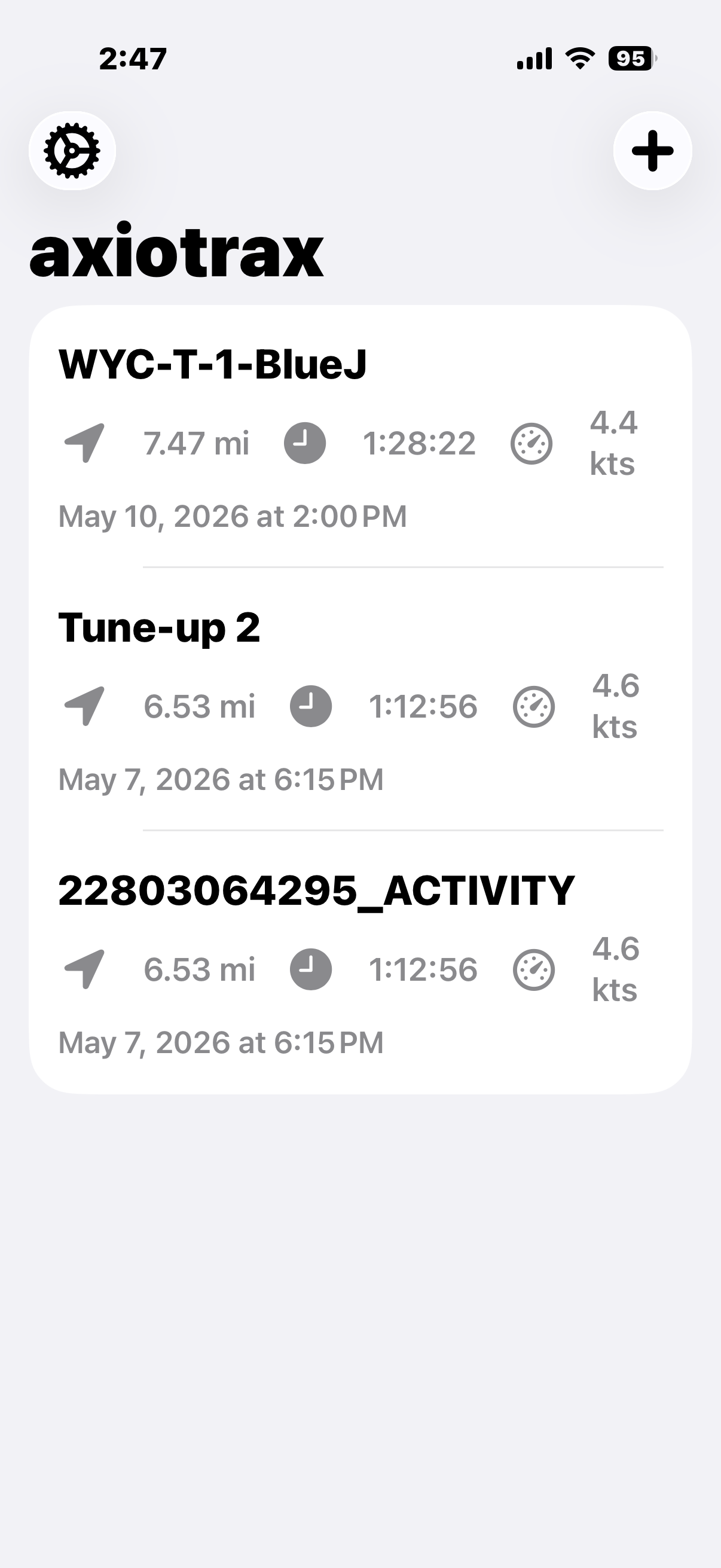
The Logbook shows all your sessions — newest first. Tap any row to open the detail view, or swipe left to delete.
Tap + in the top-right to import a new FIT file.
A FIT (Flexible and Interoperable Data Transfer) file is the raw data file your Garmin watch creates for every activity — GPS coordinates, speed, heading, and more recorded once per second. axiotrax reads FIT files directly; no Garmin Connect subscription or account required.
GARMIN/Activity. Copy to your device via AirDrop, iCloud Drive, or email.Supported activity types: Sailing, Regatta, and generic GPS activities all work. Quatix, Fenix, Epix, Forerunner, and MARQ watches are fully supported.
Tap Garmin FIT on the home splash, or tap + in the Logbook.
Locate your .fit file in the Files browser and tap it.
axiotrax parses the file, runs SmartCourse analysis, and adds the session to the top of your Logbook.
axiotrax reads the open VKX telemetry format natively, so an Atlas race comes in at full fidelity — not a simplified track. One tap in the Vakaros Connect share sheet is the entire integration.
Open the race in Vakaros Connect and tap Share.
Choose axiotrax from the app list. Bare .vkx, zipped
and gzipped all work.
The race appears in your Logbook, already analysed.
Nothing to configure: Atlas races carry their own gun time and line, so SmartCourse usually needs only the course type from you.
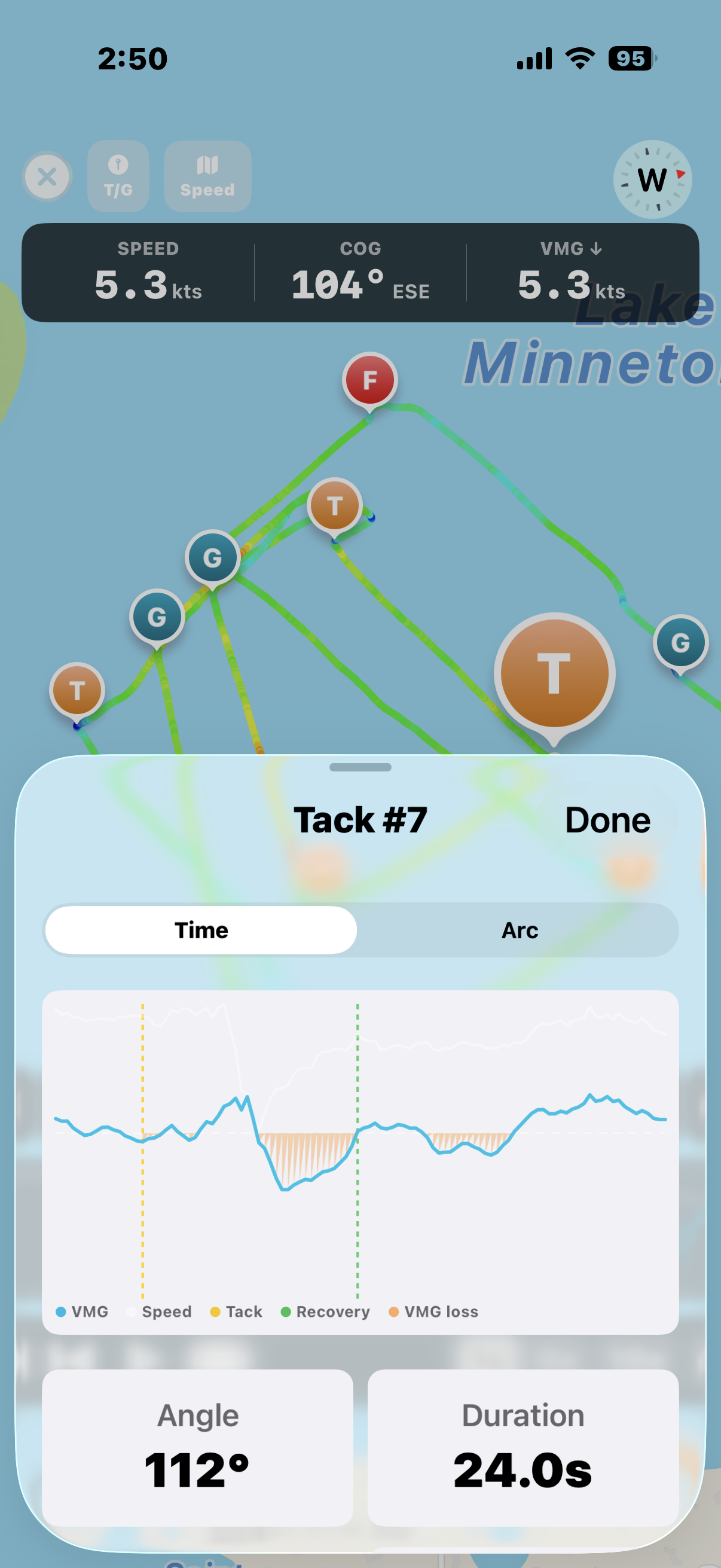
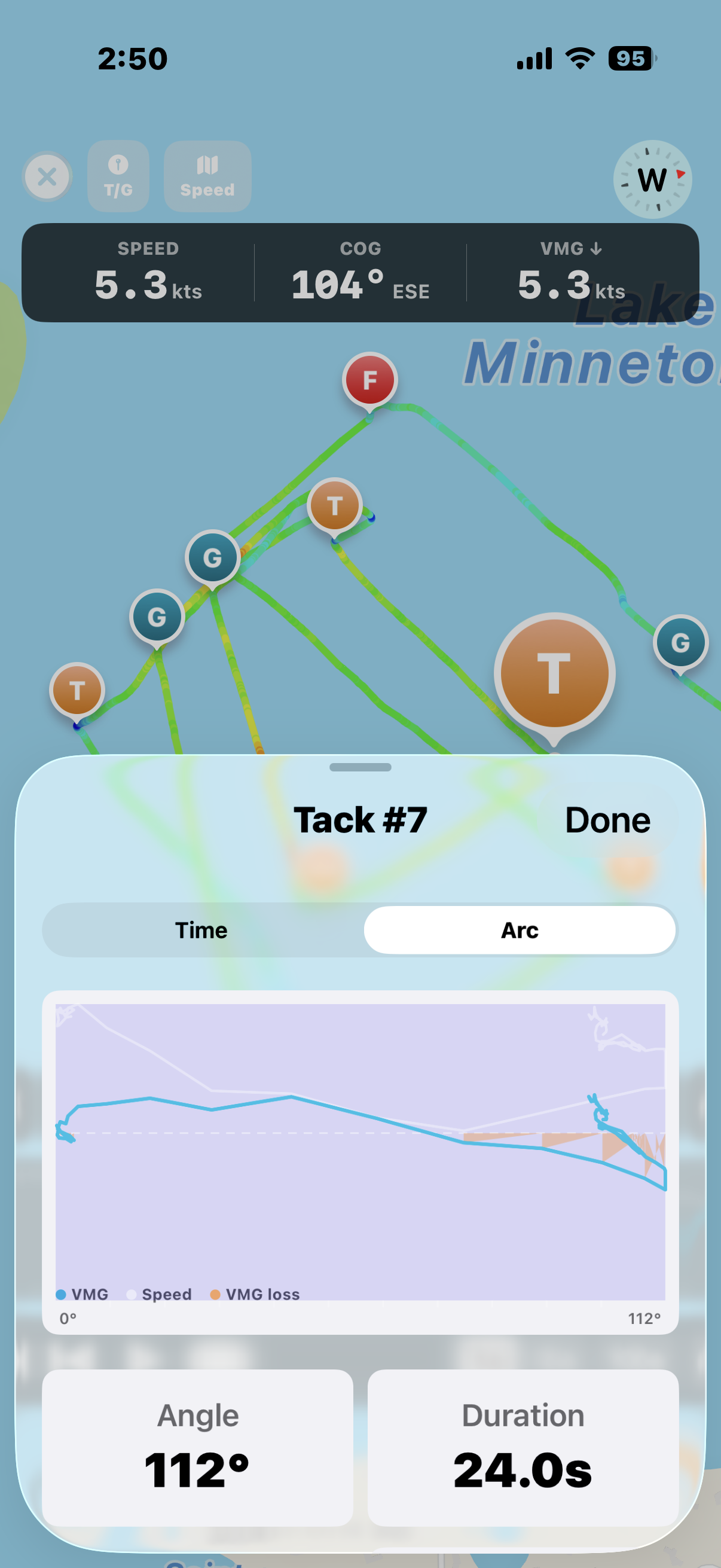
Every tack and gybe plotted on the map. Marks detected automatically — green start, orange windward, blue leeward, red finish.
Heat map grades cool (slow) to warm (fast) so you see where speed was gained or lost instantly.
SmartCourse automatically identifies wind direction, start and finish lines, all rounding marks, every tack and gybe, and your VMG on every leg — no manual input required.
VMG measures how efficiently you're sailing toward or away from the wind. Shown in the stats bar and available as a heat map overlay. Higher upwind VMG means better pointing, less speed loss in tacks, or both.
SmartCourse reads the course off your track, and it is right most of the time. When it is not, you have three corrections and all of them stick — the analysis re-runs against what you told it, and re-detection will not overwrite you.
Open the full-screen map, tap the mark you want to move, then scrub the playback slider to the moment you actually rounded it and confirm. The mark moves there permanently. Use this when a mark landed on the wrong side of a wide rounding, or when GPS wandered at the buoy.
Kept recording on the sail home? Scrub to the moment you crossed the line and tap the checkered flag. The finish moves there, and axiotrax stops reading the course at that point — so your trip back to the dock is no longer mistaken for another lap. Tap the cross beside it to undo.
If axiotrax cannot confidently locate your marks it places none of them and tells you how many it found, rather than scattering half a course on the map. That message almost always means the Course Type below is set to something you did not sail. Change it and the course re-detects immediately.
Each activity has its own race settings, accessed via the gear icon on the activity detail screen.
Enter the bearing the Race Committee announces. SmartCourse uses this instead of its GPS-derived wind estimate for all VMG and tack calculations.
axiotrax automatically fetches hourly wind data from Open-Meteo using your activity's GPS location and time. Two samples are collected — near the start and near the end of your session. Fetched data is persisted and available offline on subsequent views.
Priority: RC Wind Bearing takes precedence over API wind for all calculations. API wind is still shown for reference.
Import your boat's ORC VPP polar certificate to give SmartCoach precise target speeds for your boat in the conditions you actually raced in.
Download your boat's ORC certificate PDF from the ORC database or your yacht club measurer.
In Settings → Boat, tap Import ORC Certificate and select the PDF.
axiotrax parses the polar table. SmartCoach can now tell you "you were at 78% of polar VMG on that upwind leg."
The map on the activity detail screen shows your full GPS track with an animated boat marker you can scrub with the playback slider. It opens oriented course-up, so the windward mark is at the top and the leeward at the bottom, whichever way the course actually lies.
Tap the map mode button to colour the track by speed, VMG, or lift and knock. The last of those is the interesting one: it colours the track by whether you were lifted or headed at that moment relative to the leg’s own baseline wind, so a well-sailed beat reads mostly green with thin red slivers just before each tack — you tacked on the headers. Fat red means you held one.
Turn on Ladder for rungs drawn square to the wind and laylines into the windward mark. Both follow the wind as it shifts through the replay.
Tap the expand icon to open the full-screen map. To set a custom finish time: scrub to the finish moment, tap the flag icon. Tap again to clear it and restore SmartCourse's automatic detection.
SmartCoach is your AI sailing coach. It reads your complete race data — GPS track, speed, VMG, every tack and gybe, leg splits, wind conditions, and any notes you've added — then debriefs you on what actually happened. Ask it anything.
Tap the chat bubble icon on the activity detail screen. On iPad, SmartCoach opens as a side panel alongside the map — ask questions while scrubbing the track.
Ask about a specific leg, tack, mark rounding, or the breeze, and you'll see the coach pull the data live — a brief "Analyzing your tacks…" indicator appears while it queries your actual GPS record, then it answers with your numbers. It doesn't guess; it looks it up.
Set up your profile in Settings → Sailor Profile. The more context you give SmartCoach — experience level, role, crew names and positions — the more specific its coaching becomes. "Tell Mike to ease the traveler" rather than "tell your trimmer."
In Settings, set your priority — Speed & Trim, Balanced, or Tactics & VMG — and add a free-text note about what you're working on. SmartCoach reads both and shapes every debrief around them.
Tap the notes icon on the detail screen before opening SmartCoach. Notes can include conditions, fleet size, result, or anything else the GPS can't tell it. SmartCoach reads these as part of its context for every conversation.
Access: SmartCoach Pro includes a monthly allowance of coaching sessions — no setup needed. Power users can add their own Anthropic API key in Settings → SmartCoach for unlimited use; the key is stored on-device only and never sent to axiotrax servers.
One boat’s track cannot tell you whether you were slow or whether the wind was light where you happened to be. A cohort can. When several boats in the same fleet record the same race, the fleet becomes the reference you measure against.
Cohort works on private links, not accounts. In Settings → Curated Cohort, tap Share My Follow Link and send that link to the boats you want benchmarking against you. Anyone who opens it can see the races you publish, and appears in your Followers list. Remove someone there and their access ends immediately.
The link is the key. It is unguessable, so only people you send it to can find it — but treat it like a key and only share it with boats you trust.
With Auto-publish on, races you sail are published to your followers automatically. Publish All My Races to Cohort backfills your whole history at once — useful after a fresh install, or so a boat that follows you later inherits your back catalogue. Published races carry your boat name, sail number, class and PHRF rating so the comparison is fair.
Open a race and tap cohort to load another boat’s track over your own. Both boats replay together on the map, and axiotrax reports where the gains and losses actually happened — at the start, at each tack, and at the mark — measured in boat lengths along the course axis rather than in raw distance.
Turn on Ladder in the playback map for rungs drawn square to the wind and laylines into the windward mark. The rungs are lines of equal progress to windward, so two boats on the same rung are level however far apart they are on the water. Both follow the wind as it shifts during the replay, which is the clearest way to see a race change hands on a windshift.
Cohort races stay separate. Races pulled from boats you follow live apart from your own Logbook — they never mix with your sessions.
Share any session with your crew so they can open it on their own iPhone and ask SmartCoach questions from their perspective — what they saw at the bow, how the trim felt, what happened on the leeward mark.
Go to Settings → Sailor Profile → Crew Members. Add each crew member's name, position, and an email or phone number. Contact info is used to find their iCloud account and deliver the share invitation.
Open the session and tap the crew icon (two people) in the toolbar.
Select which crew members to invite and tap Share.
Crew with matched iCloud accounts receive an invitation. For others, you get a share link to send via Messages or AirDrop.
Crew members tap the iCloud notification or the share link. The session downloads and appears in their Logbook. Shared sessions are read-only — crew can view the track and ask SmartCoach questions, but cannot edit the session.
Requires iCloud: Both owner and crew need to be signed into iCloud. The axiotrax app must be installed on the crew member's device.
Import the clip and axiotrax lines it up with your track using the video’s own timestamp. That is all most footage needs.
Clips sent through Messages, WhatsApp or most chat apps arrive stripped of their creation time, and some DJI exports lose it too. Rather than making you guess an offset, axiotrax lets you pin the video to your track: scrub the video to a moment you can recognise — the gun, a mark rounding, a tack — scrub the track to the same moment, and confirm. Named moments from the race are offered as shortcuts so you can jump straight to the start or a rounding rather than hunting.
The alignment is remembered, so a second attempt starts from the first rather than from nothing. Getting it two seconds out and nudging it is normal.
The same works for photos: pin a photo to the point on the track where it was taken.
axiotrax stamps speed, VMG, compass heading, a live track map, and race leg onto every frame of your sailing footage — frame-precise, automatically synced to your GPS data.
Select your video from the Photos library using the video picker on the detail screen.
axiotrax syncs the GPS track to your video frame-precisely — no manual alignment needed.
Tap Render. The finished video exports directly to your Photos library.
Pro vs. Free: Free users get a watermarked export. Pro subscribers get a clean branded export with custom team logo and boat name.
On iPad the replay and SmartCoach sit side by side: the track fills one panel while your data, overlay controls and SmartCourse analysis scroll in the other. It is the best screen for a post-race debrief with the crew around it.
axiotrax runs on Apple silicon Macs, which is the easiest way to review a long day of racing and render video. Recording and Apple Watch import are hidden there — the Mac is for reviewing, not for capturing.
The numbers axiotrax computes — target speed, VMG, polar performance — can be pushed to a sunlight-readable display you build yourself for about $55. Your phone does all the work; the display just shows the result. Firmware and case files are open source. See the build →
Per-activity vs. global: Global Settings set defaults for new imports. Each activity's gear icon lets you override those defaults for that session only.